
Approve a template
Create a WhatsApp template with variables—name, products, total, tracking link—and wait for Meta approval.

 Shopify
 WooCommerce
 Google Sheets
 Elementor
 n8n
n8n WhatsApp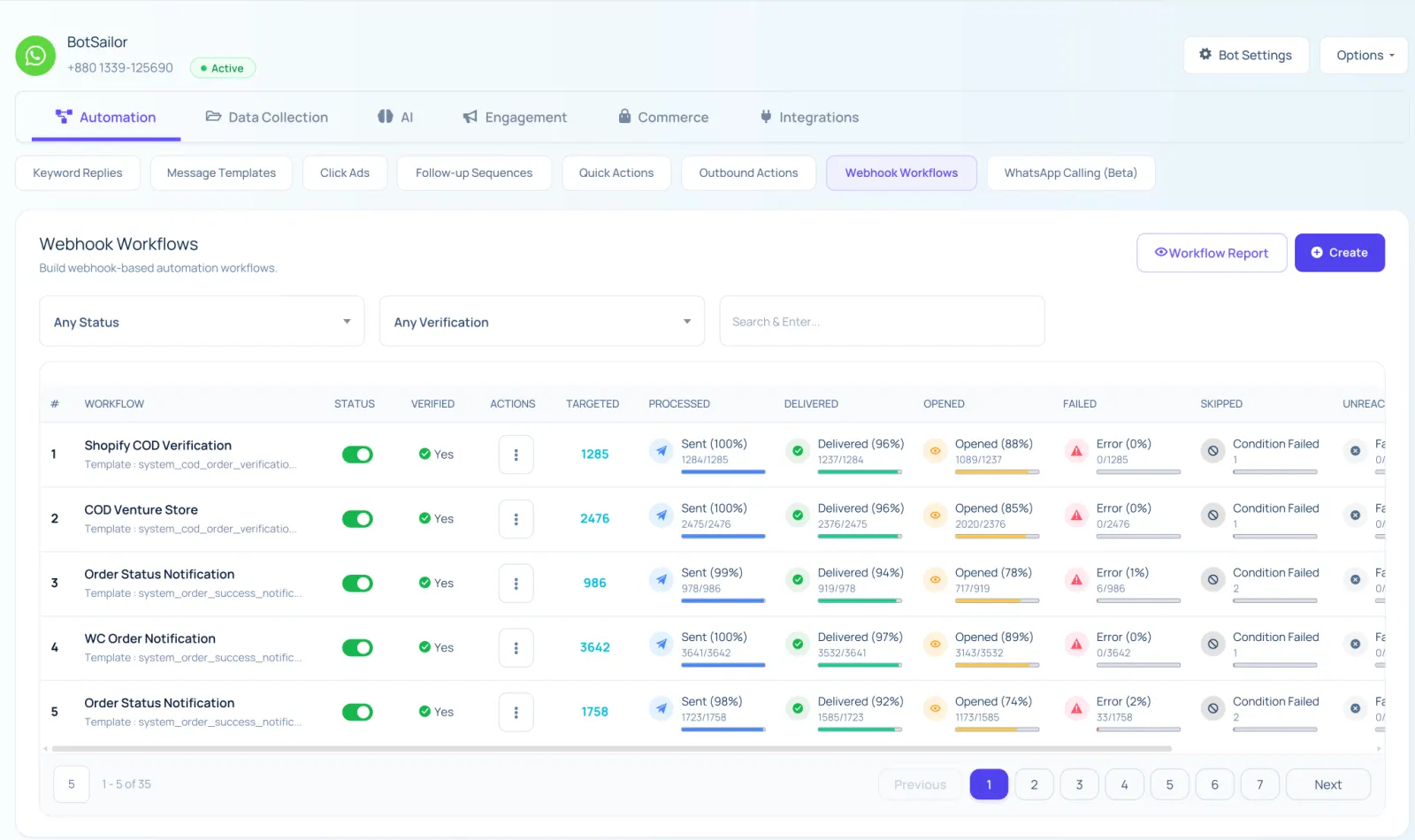
This is inbound automation: any third-party app (or your own API) fires the event. BotSailor turns it into a WhatsApp template to the customer’s phone.
Create a WhatsApp template with variables—name, products, total, tracking link—and wait for Meta approval.
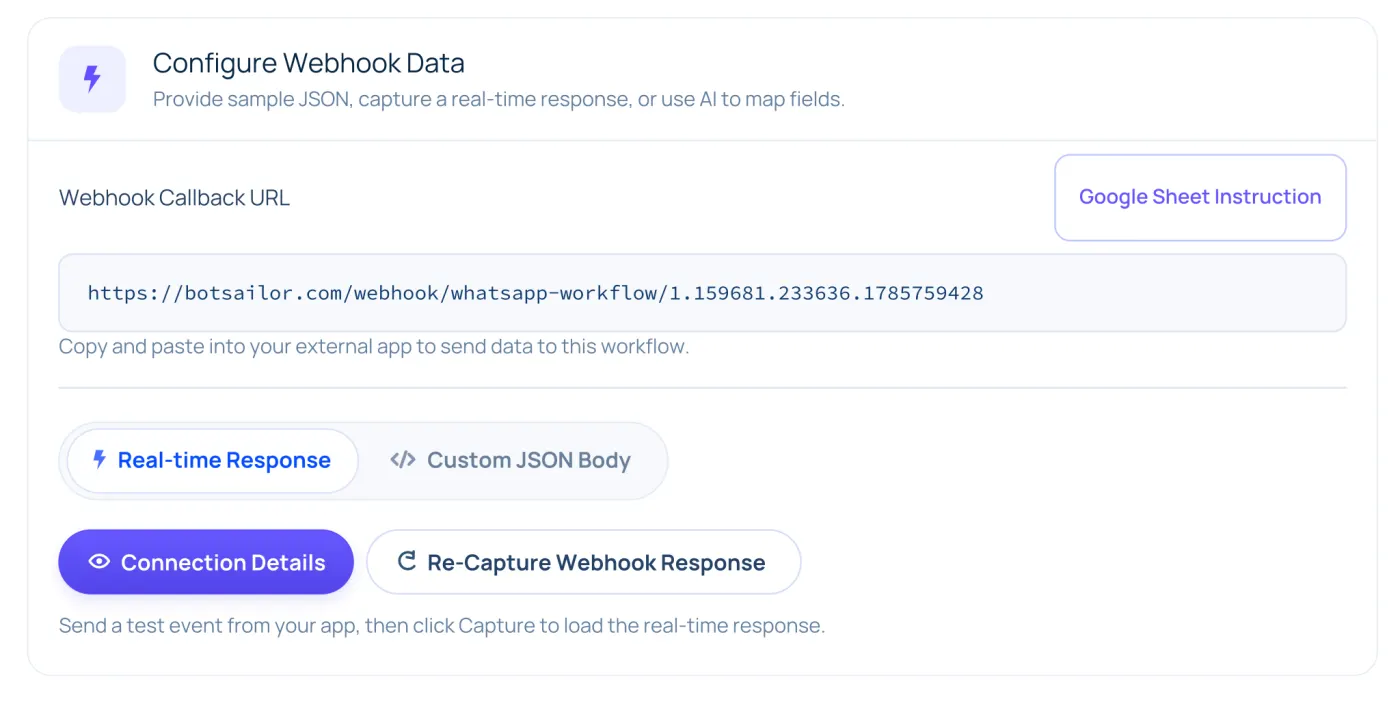
Create the workflow. Paste the unique URL into any app with a webhook field—Shopify, WooCommerce, Elementor, Sheets, a CRM, Zapier, Make, or your own server.
Capture a live event or paste sample JSON. Point phone, line items, and totals at template variables. Attach Data Formatters when the payload is messy.
Optional: delay, conditions, labels, and Confirm/Cancel callbacks. Toggle Active. Every matching event sends on WhatsApp.
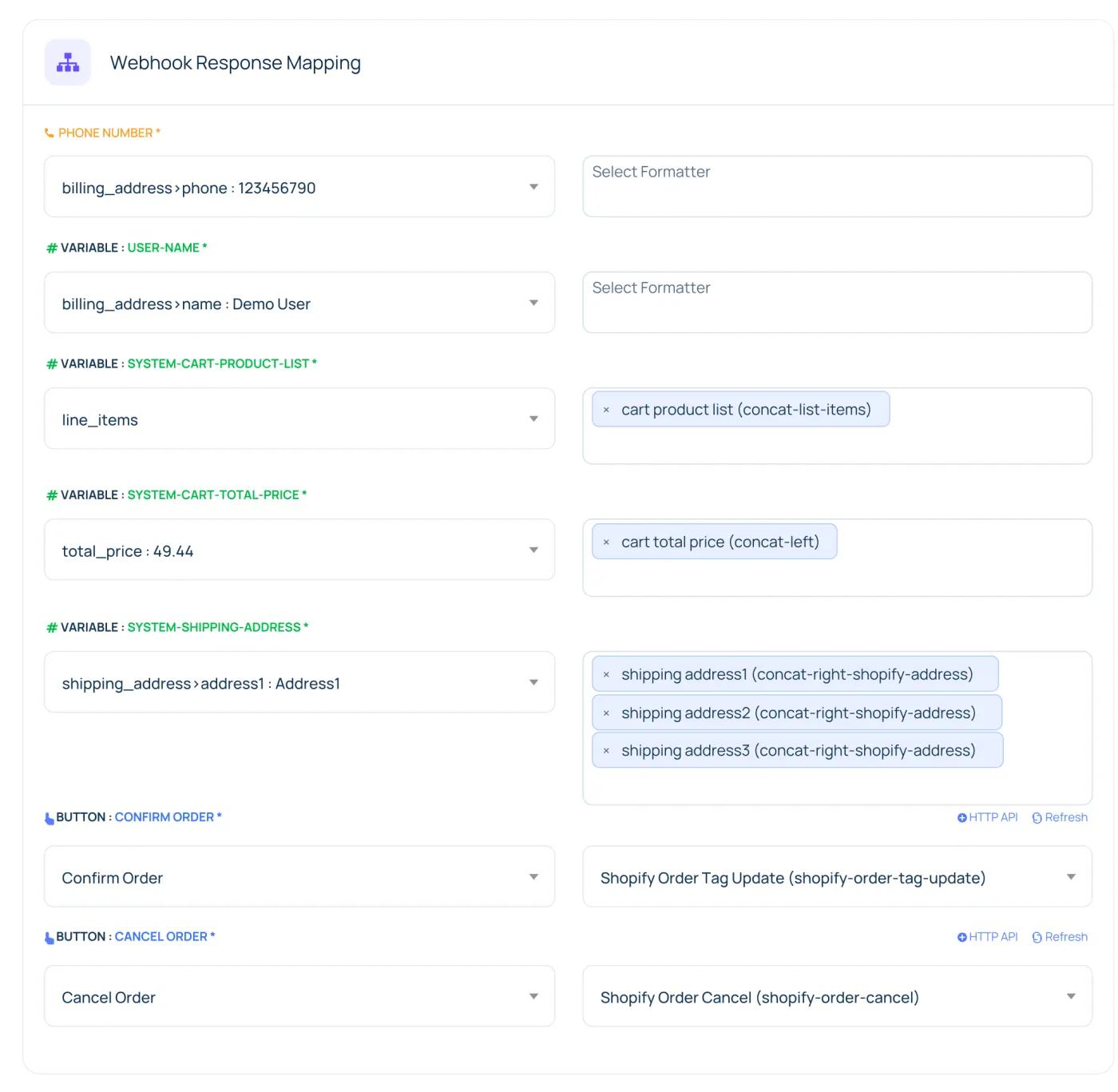
Phone is always first—that is who receives the message. Every other dropdown is a template variable. Nested paths such as billing>phone and line_items are picked from the captured payload.
Capture a live webhook, paste sample JSON, or let the AI assistant suggest mappings. Auto-map already understands WooCommerce, Shopify, and Salla orders. Then clean the values with Data Formatters.
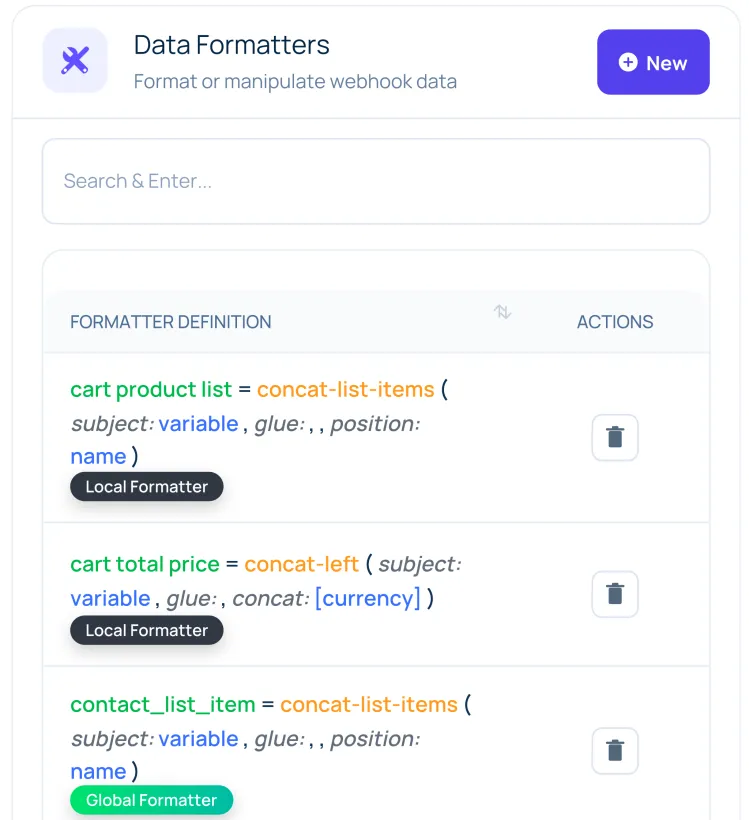
Stores and apps rarely send data the way a WhatsApp template needs it. Product lists arrive as arrays. Phone numbers include a plus. Dates need three more days. Totals need decimals.
Create a formatter once, reuse it across fields, and chain them on a mapping row. Fifteen actions cover the common jobs—no code, no spreadsheet cleanup.
This is why Webhook Workflow is more than a notification URL. Send Confirm and Cancel buttons. When the customer taps, a Callback API can add an order note, tag the order, change status, or cancel it in WooCommerce, Shopify, or Salla. HTTP API can hit any other endpoint.
Use a condition so only COD orders get the verification message. Leave delay at zero so it sends immediately.
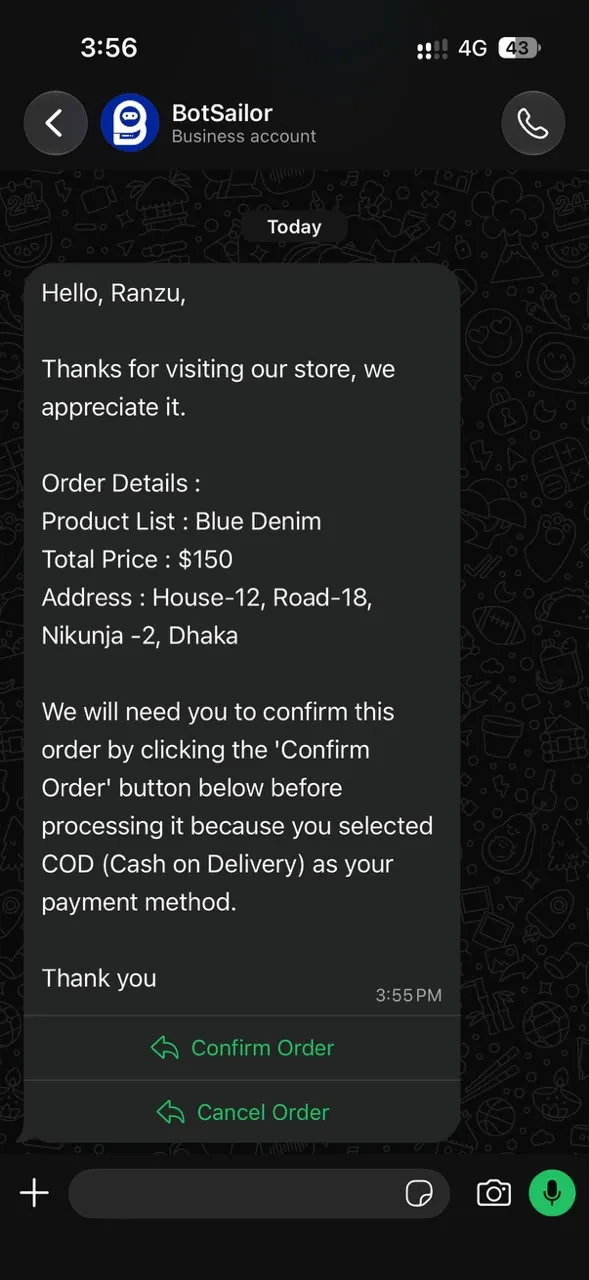
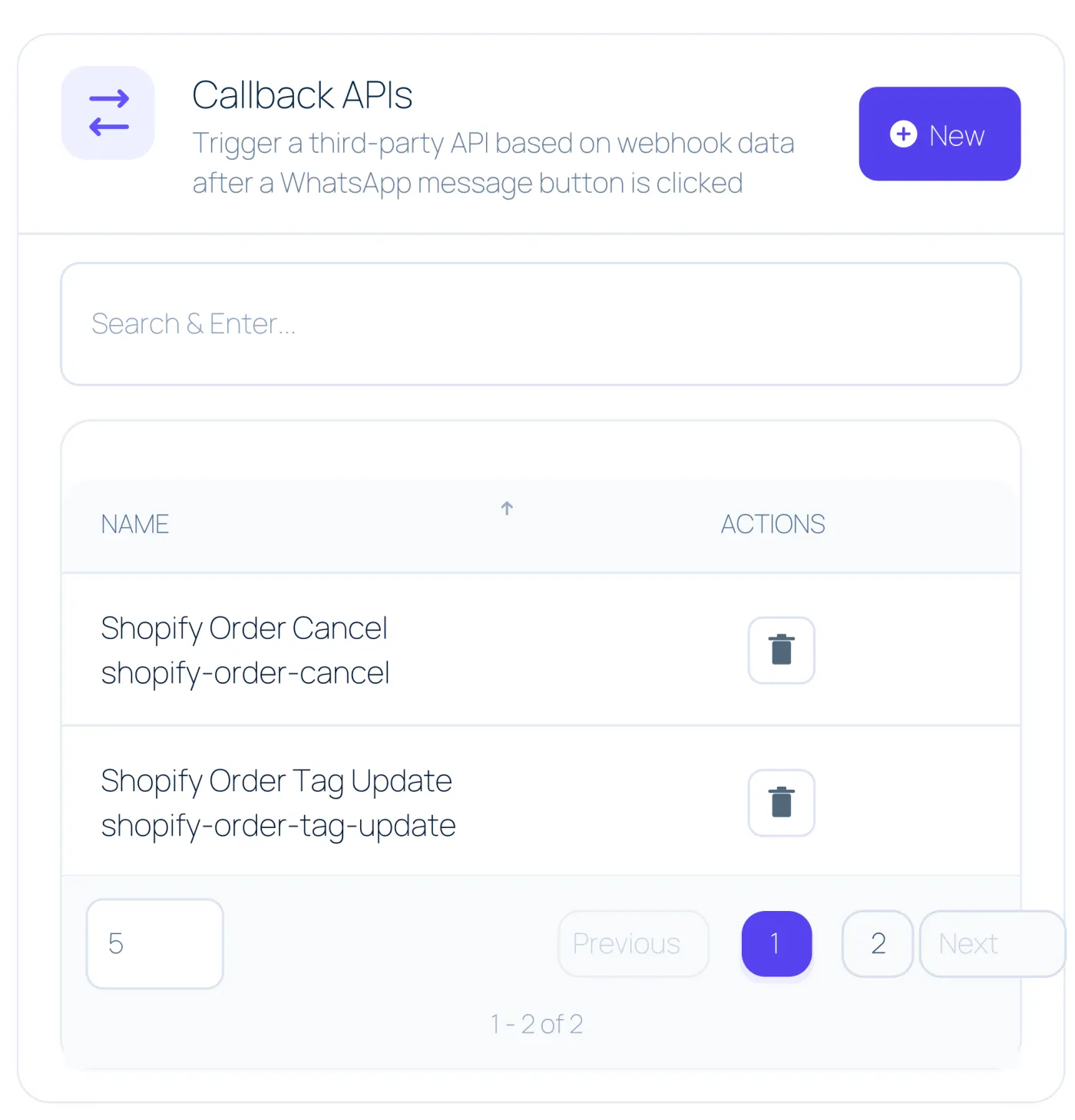
Each card is a real setup from stores and forms. The same engine also runs for CRMs, payment tools, Zapier/Make/n8n, or any custom app that posts JSON.
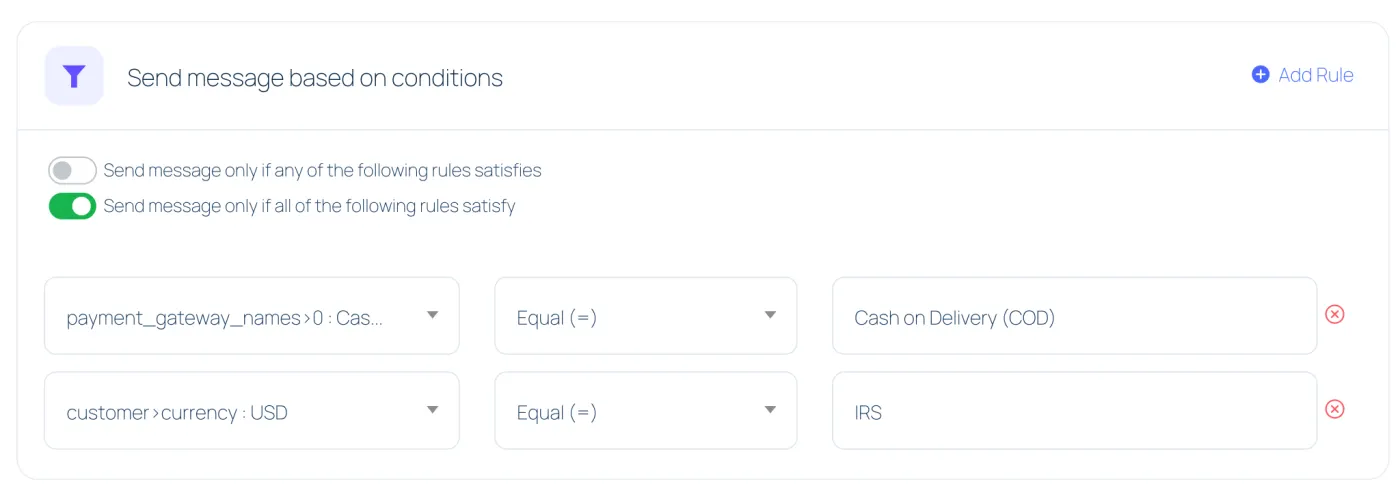
One webhook can fire for every order. Conditions keep the template for the right ones: COD only, totals above a threshold, a region, or a status. Match any rule or all rules. Delay waits in minutes—cart recovery at 30, prepaid offer at 5, order alerts at 0.
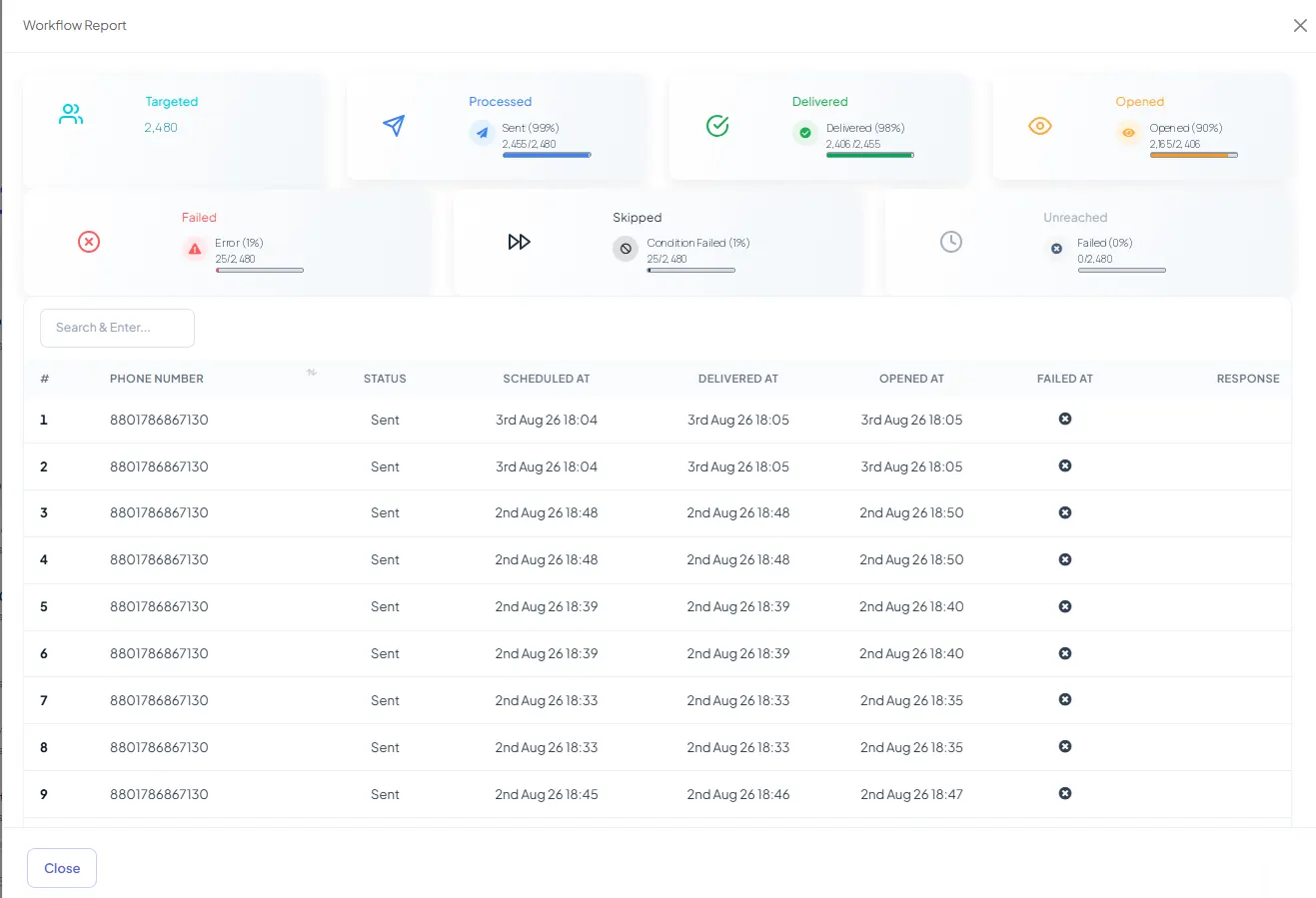
Each workflow tracks Targeted, Processed, Delivered, Opened, Failed, Skipped (conditions), and Unreached. Download CSV. Resend failed rows. Replies are not a fake column—they continue in Shared Inbox, with labels, sequences, and team assignment already applied from the workflow.
Shopify and WooCommerce can use Store Automation for the common campaigns. Webhook Workflow is the same engine with full mapping, formatters, conditions, and callbacks—plus every other app that can POST JSON.
Connect Shopify or WooCommerce, pick order notify, COD, or abandoned cart, use a default template. Fastest path for stores.
Any webhook. Nested mapping. Formatters. Conditions. Delay. Button callbacks. Reports. Use this when the default campaign is not enough—or the event is not a store.
Popular stores and forms are ready-made examples. The same workflow also connects CRMs, payment tools, Zapier, Make, n8n, custom ERPs, and any other third-party app—or your own API—that can send a webhook.
ShopifyWooCommerce SallaGoogle SheetsElementor
 HubSpotn8nWhatsApp
No native connector required. If the tool has a webhook URL field—or you can POST JSON from your own code—it can trigger WhatsApp through BotSailor. Read the integration guide.
Templates, mapping, data formatters, COD callbacks, Store Automation vs Workflow, and reports—answered from the real product.
BotSailor Webhook Workflow is an inbound WhatsApp automation. An external app posts JSON to a unique URL. BotSailor maps that payload to an approved WhatsApp template, optionally formats and filters it, then sends the message. It is not Meta’s Cloud API webhook, and it is not Outbound Webhook.
Store Automation is the fast path: connect the store and turn on order alerts, COD verification, or abandoned cart with default templates. Webhook Workflow is the power path: any JSON source, nested field mapping, formatters, conditions, delays, and button callbacks that write back to WooCommerce, Shopify, or Salla.
No. You copy a callback URL into Shopify, WooCommerce, Elementor, Google Sheets, or your CRM. Then you map dropdown fields to template variables. Formatters and Callback APIs are optional. You can also paste sample JSON instead of waiting for a live event.
Yes. WhatsApp requires a Meta-approved template for business-initiated messages. Create the template first—with variables such as product list, total, or order ID—then select it when you create the workflow. Session or free-form messages are not used here.
Anything that can POST JSON to a URL. That includes Shopify, WooCommerce, Salla, Google Sheets, and Elementor—and also CRMs, payment tools, Zapier, Make, n8n, custom ERPs, or your own server. BotSailor also ships a WooCommerce abandoned-cart plugin and a Google Sheets Apps Script snippet.
Yes. Use a template with Confirm and Cancel quick replies. Map those buttons to postbacks and Callback APIs. When the customer taps a button, BotSailor can add an order note, tag the order, update status, or cancel it in WooCommerce, Shopify, or Salla.
Formatters clean webhook data before it goes into the WhatsApp template. Typical jobs: strip a plus from a phone number, join line items into “Shirt, Shoes”, add days to a date, or set a default when a field is empty. You create a formatter once, then attach it to a mapped field.
Yes. Conditions send only when rules match—for example payment method equals COD, or total is greater than 100. A delay waits a number of minutes after the webhook (useful for abandoned carts or a prepaid-upgrade offer). Leave both empty to send immediately on every event.
The URL includes an unguessable unique ID. There is no extra HMAC login on the public endpoint. Treat the URL like a secret: do not post it publicly, and only paste it into the store or app that should trigger messages.
Each workflow shows Targeted, Processed, Delivered, Opened, Failed, Skipped (conditions), and Unreached. Open the report for recipient-level rows, download CSV, and resend failed messages. Delivery and reads come from WhatsApp; replies continue in Shared Inbox.
Create a free account, connect WhatsApp Cloud API, approve a template, then paste the callback URL into your app.
Webhook Workflow guideContact UsConnect the webhook once. BotSailor maps the data, sends the official template, and can update the store when the customer replies.