

Visual chatbot & automation builderBuild Chatbot Automations Visually
Build Chatbot Automations Visually
No Code Required
 WhatsApp
 Messenger
 Instagram
 Telegram
 Website
Visual Flow BuilderLive editor
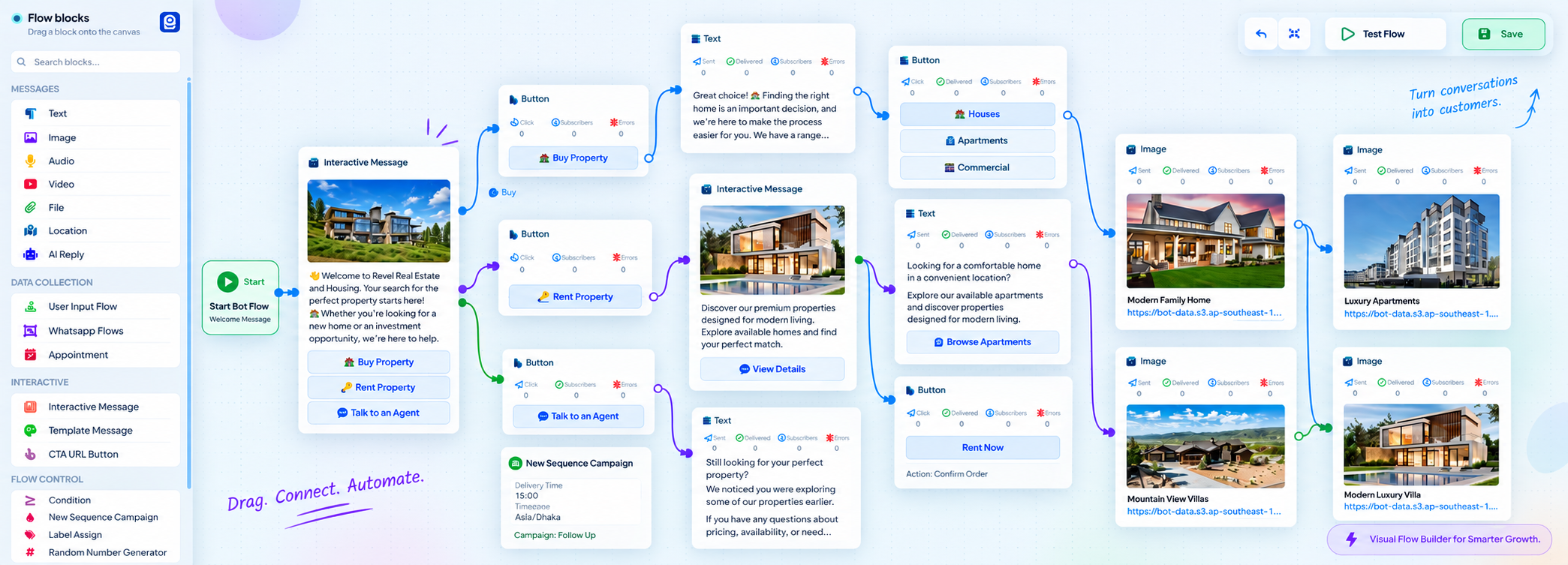
One builder, every channel
Design Conversations by Connecting Blocks
Drag a block. Pull a socket. The path is the bot. What you see on the canvas is what the customer gets on WhatsApp, Instagram, Messenger, Telegram, and the website.
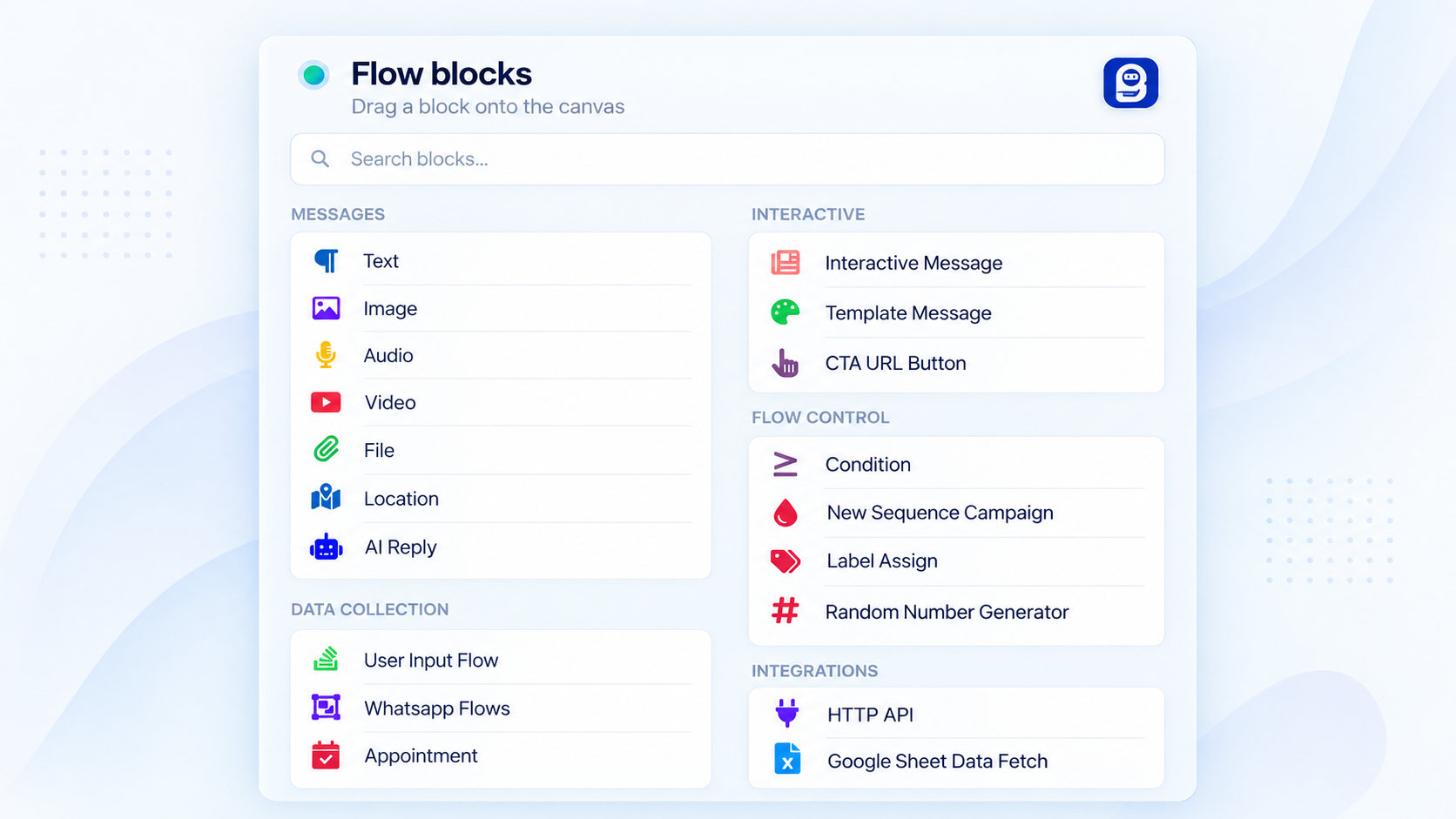
- 1Pick a block Text, media, buttons, conditions, APIs — drag it from the library.
- 2Connect the sockets Each line is the next reply. No hidden rule list.
- 3Open a block to write Double-click. Add variables, delays, or actions. Save.
Condition blocks
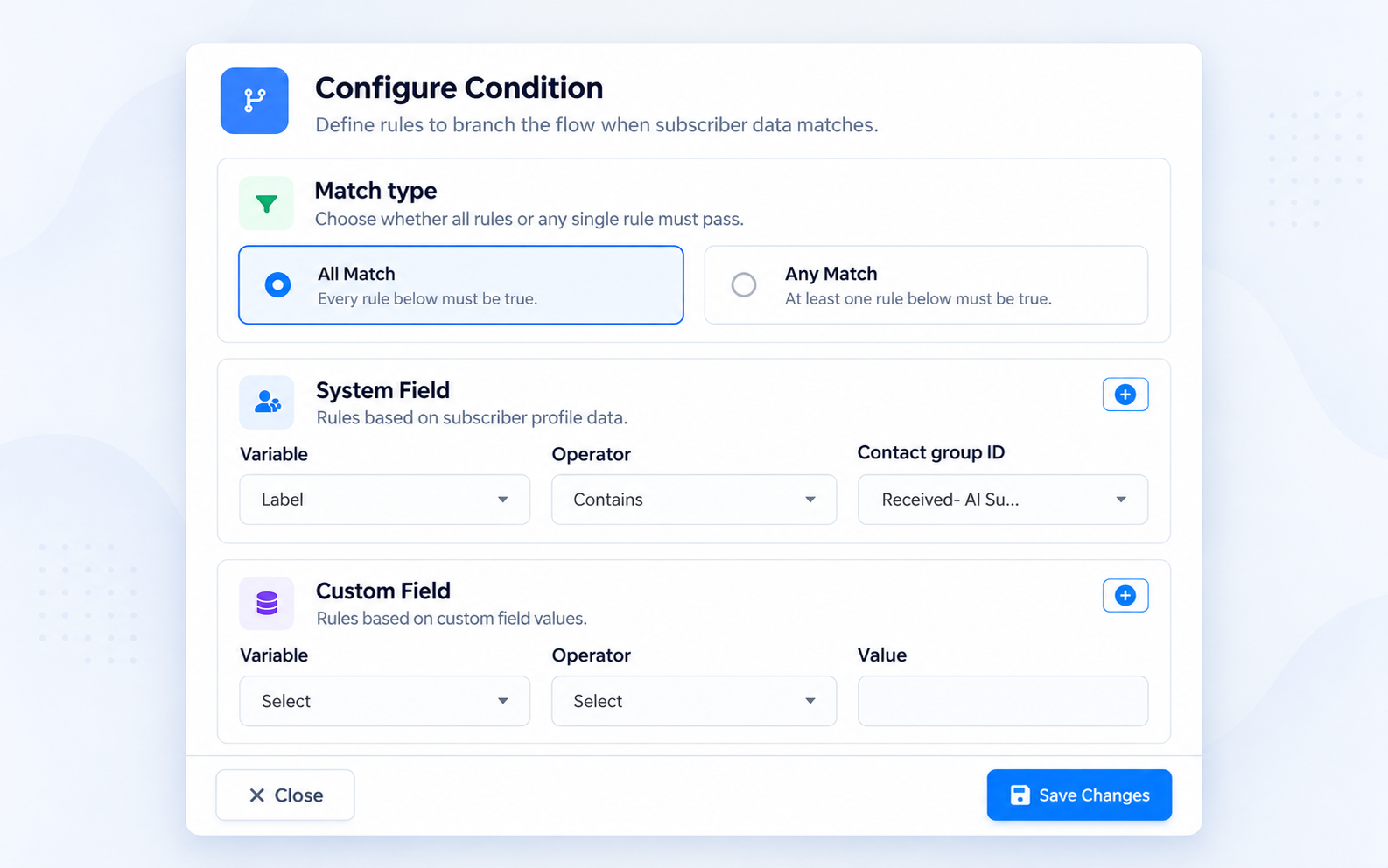
Control Different Conversations With Condition Blocks
Drop a Condition when the chat should split. Check a label, a group, a custom field, or the last answer. Stack more Condition blocks for if / else if / else — VIP one path, buyers another, everyone else lead capture. You draw the branches. The bot follows them.
Customer starts
Condition blocks
User Input Flow
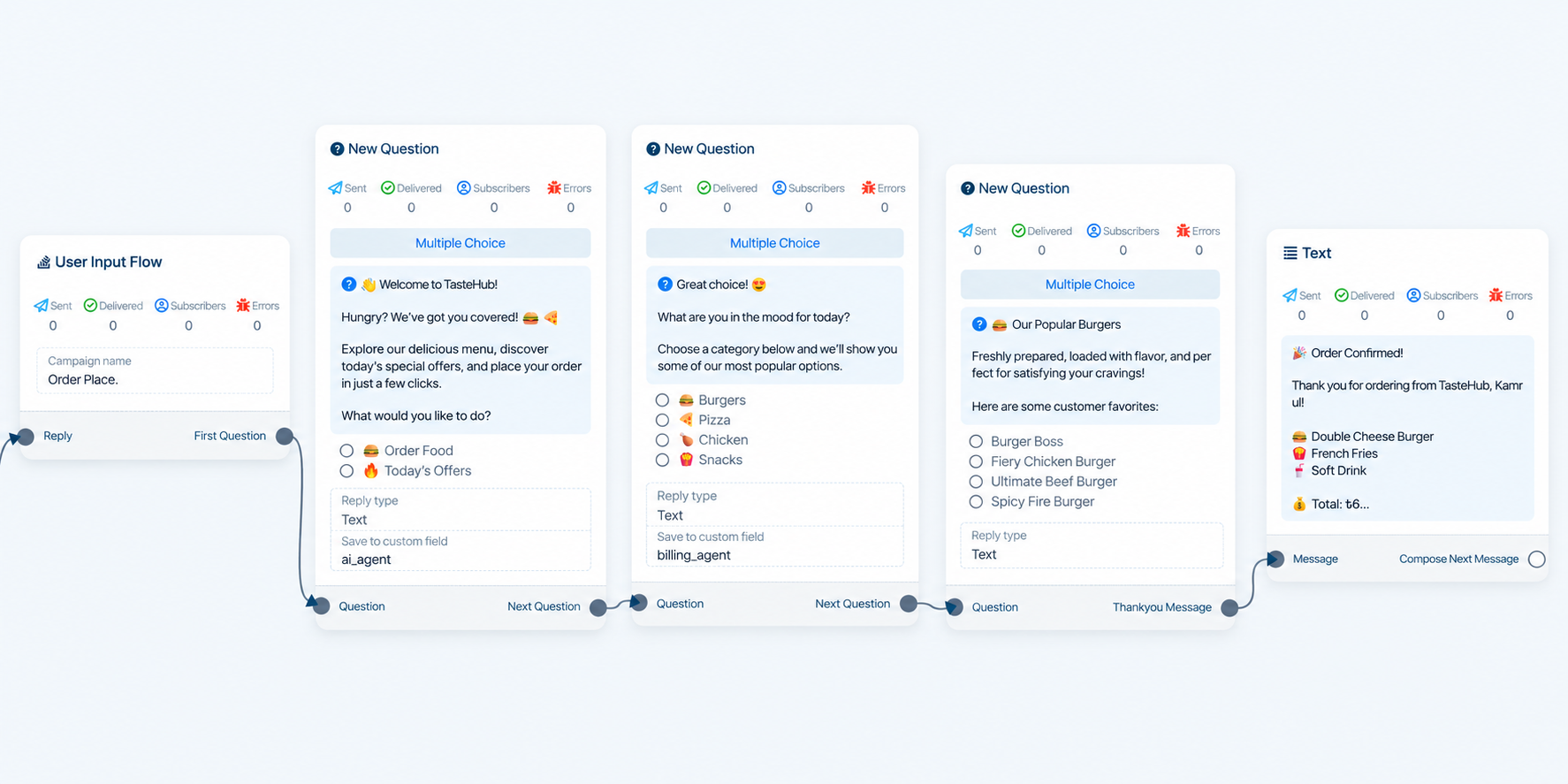
Collect Customer Data While You Chat
Chain questions on the canvas. Free text or multiple choice. Save each answer to a custom field. The next Condition, sequence, or message can use it.
- 1 Ask the next question
- 2 Save the answer to a custom field
- 3 Continue the flow, or branch
Sequence messaging
Keep Following Up After the Chat Ends
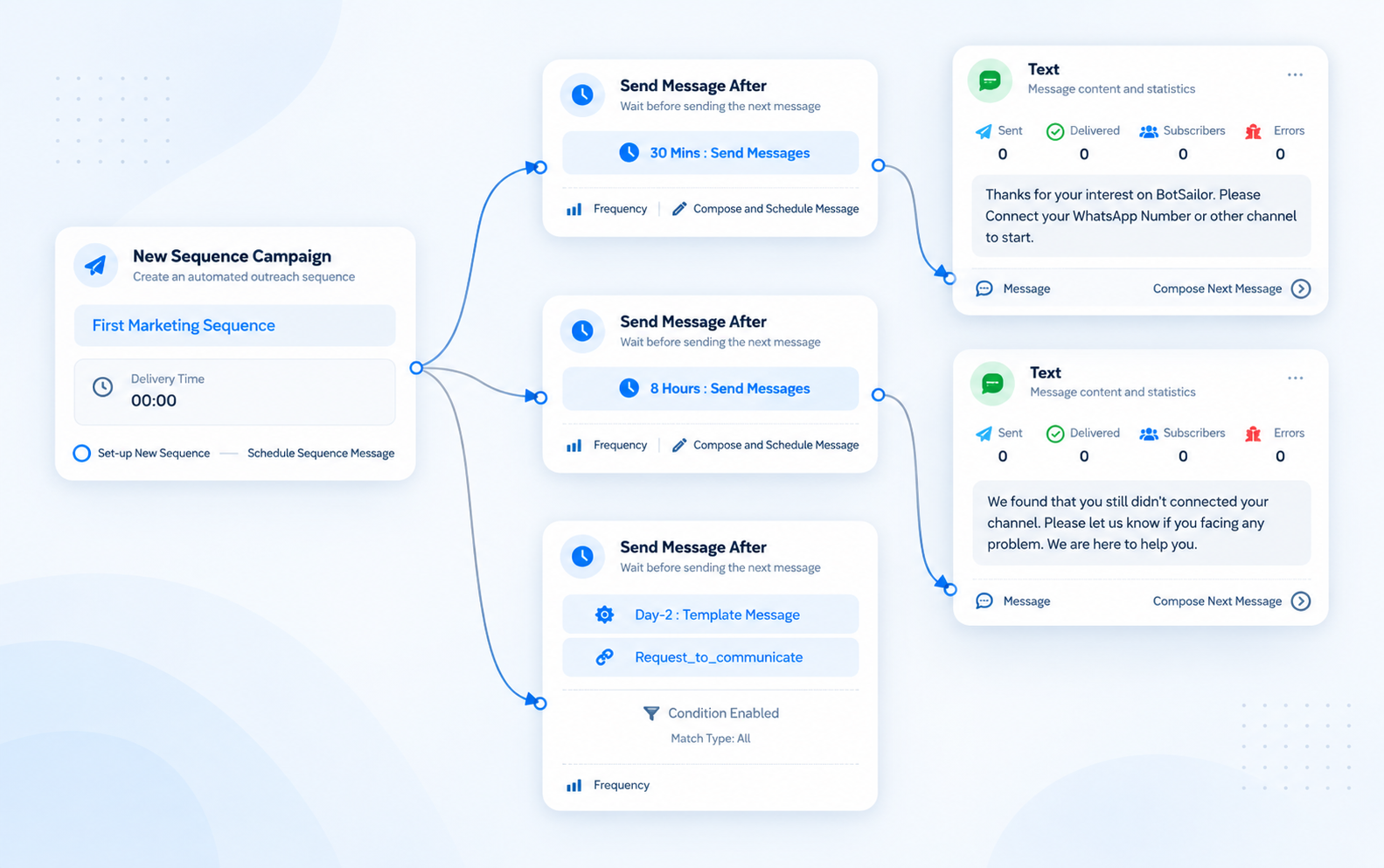
A sequence is a chain of messages that send themselves. You choose the wait for every step — a few minutes, several hours, or a later day. The example on the right is one schedule. Yours can be different.
- 1 Start it from a button or a Condition
- 2 Set any delay on each step — minutes, hours, or days
- 3 Send a regular message, a template, or skip the step with a condition
Labels, fields, and actions
Segment Subscribers. Then Make Something Happen.
A tap can add a label, save a custom field, start a list, assign a teammate, or call your stack. The next Condition, sequence, or broadcast uses that data.
Add or remove a label
Tag a hot lead, buyer, or campaign source on the tap.
Save a custom field
Store name, plan, budget, or any answer they just gave.
Add to a list
Keep a clean group for the next sequence or broadcast.
Assign the conversation
Route to a group or teammate in Shared Inbox.
Send to a webhook
Fire your own URL from a button or the last question.
Update Google Sheets
Write the row while the chat is still open.
Call an HTTP API
POST the lead. Map the response back into a field.
FAQ
Visual Flow Builder FAQ
What it is, which channels it covers, and how data, follow-ups, conditions, and live handoff work.
BotSailor Visual Flow Builder is a no-code canvas for chatbot and automation journeys. You drag blocks, connect them, and save. The path you draw is what customers get on WhatsApp, Instagram, Messenger, Telegram, and website chat — messages, conditions, data collection, sequences, and actions on one map.
No. You build visually. Drag a block from the library, pull a line from a socket, and double-click a node to write the message or set the rule. Save when the path is ready.
The same builder idea runs on WhatsApp, Telegram, Facebook Messenger, Instagram, and website chat. Each channel keeps its native features, such as WhatsApp templates and catalogs, Telegram keyboards, Messenger and Instagram carousels, and an embeddable website chat widget.
Yes. User Input Flow asks questions in a row — free text or multiple choice — and can save each answer to a custom field. The next Condition, sequence, sheet, or webhook can use that data without a separate form tool.
Yes. A sequence is a chain of messages that send themselves. You set the wait on each step — minutes, hours, or a later day. Use a regular message inside the 24-hour window, or an approved template anytime. A condition on a step can skip the send if they already converted.
Yes. Drop a Condition block to split the path. Check a label, a group, a custom field, or the last answer. Stack more Condition blocks for if / else if / else — for example existing buyers one way, new contacts another.
Yes. Add Talk to Human or assign the conversation to a team or teammate. Automation can pause and the thread opens in Shared Inbox with the labels and notes already on the contact.
No. Visual Flow Builder designs the full chatbot: messages, logic, follow-ups, and human handoff across channels. WhatsApp Flow Studio builds Meta WhatsApp Flow form screens. You can launch those forms from a WhatsApp Flow node inside Visual Flow Builder.
Yes. Use the canvas for the path you already know. Hand open questions to an AI Agent, then bring the customer back into a flow, an API, or a human in Shared Inbox.
Ready to map a journey?
Create a free account, connect a channel, and drag the first node onto the canvas.
Start building freeContact UsVisual Flow Builder
Turn the Customer Journey Into a Flow
Visual when you build. Deterministic when you need control. AI when the question is open.