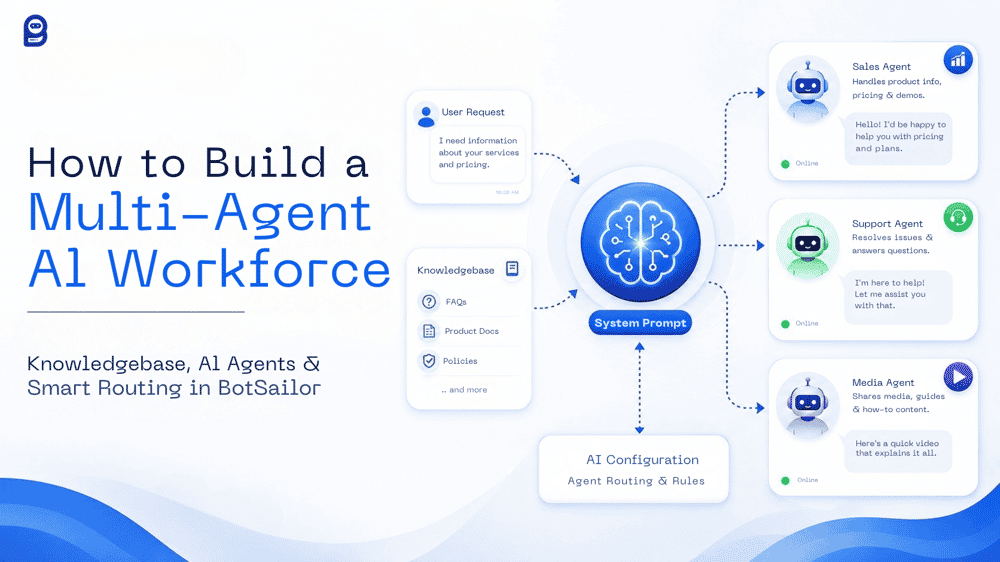
A multi-agent AI system deploys multiple specialized AI agents simultaneously/side by side, each trained on different data, assigned a distinct role, and activated within a single smart routing layer. BotSailor's three-step architecture (AI Knowledgebase → AI Agent → AI Configuration) makes this possible without writing a single line of code.
Most chatbots are generalists. They handle sales questions, support tickets, and product inquiries from the same prompt, and they do all of them poorly. The result is a bot that frustrates customers because it gives vague answers, misses context, and can't take meaningful action.
BotSailor's Multi-Agent AI architecture solves this by replacing a single overloaded bot with a coordinated AI workforce. Each agent is trained on its own data, built around a specific role, and equipped with autonomous backend actions it can trigger mid-conversation. Example includes- A Sales Agent qualifies leads and adds labels. A Support Agent escalates complex tickets to a human. A Media Agent holds product images in reserve and delivers them only when a customer asks to see them.
All three run simultaneously. The platform reads each incoming message and routes it to the right agent based on intent — automatically.
This guide walks through every step of that process: building the knowledgebases, writing the system prompts, configuring the actions, and activating three supposed agents at once inside BotSailor's AI Configuration panel.
Before diving into the tutorial, it helps to understand the three components that make this system work. Each pillar has a distinct job, and skipping any one of them breaks the chain.
AI Knowledgebase — The Foundation
The Knowledgebase is where each agent's training data lives. It holds the information the agent draws from when answering questions.This training data can include static content(FAQs), website URLs, uploaded files (PDFs, Docs), live Google Sheets, real-time API data, and uploaded Media for AI Vision training. Because different agents require different Knowledgebases, you can tailor each one precisely, for an example, a 'Support Agent' needs technical manuals, a 'Sales Agent' requires dynamic pricing sheets, and a 'Agent for Sending Media' depends on a specialized gallery of product photos.
AI Agent — The Brain and Actor
The AI Agent serves as the active operational layer of your automation. While it draws information from a connected Knowledgebase, the System Prompt is the absolute brain of the agent and always takes top priority. It is the ultimate instruction set that defines the agent's exact role, what customer data it must collect, and how it should behave.
More importantly, the System Prompt has autonomous backend actions. By simply typing ## inside the editor, you can embed commands like ##add_label##, ##call_http_api##, or ##assign_human##.
The golden rule of this architecture is conditional execution. You explicitly write the condition first (For an example: After the customer provides their email), and place the action directly below it. This exceptional level of control is what separates a passive, generic AI chatbot from a highly trained digital worker capable of completing real business tasks.
AI Configuration — The Smart Router
The AI Configuration panel serves as the master switchboard for your digital workforce. This is where the true power of this whole system comes to life, allowing you to keep multiple specialized agents, such as Sales, Support, and AI Agents for sending Media, active simultaneously, working side by side. Instead of relying on rigid keyword triggers, you set up intelligent Agent Routing Rules by simply defining contextual message types (Example: mapping 'pricing, cost, buy' to the Sales Agent, or 'bug, broken, help' to the Support Agent). When a message arrives, BotSailor analyzes the user's intent and instantly dispatches the conversation to the most qualified expert.
Furthermore, if a customer's intent shifts mid-conversation, the system re-directs smooth handoffs between agents, ensuring a fluid, human like experience without any manual involvement.
Before We Dive In: How This Guide is Structured
To clearly demonstrate the true power of a multi-agent workflow, this guide will walk you through building a complete AI workforce from the ground up. For tutorial purposes, we are going to create a team of three specific agents:
- A Support Agent (for troubleshooting)
- A Sales Agent (for lead qualification)
- An Agent for Sending Media(for on-demand image delivery)
(Note: BotSailor's architecture is infinitely flexible. While we are using these three roles as examples, you have the complete freedom to build any type of specialized agent your specific business requires.)
Our Setup Approach To give you:
A comprehensive understanding of how these agents interact, we will tackle the setup process for all three agents simultaneously. We will train their distinct Knowledgebases, write their System Prompts, and configure their global routing rules side-by-side. Seeing them built in parallel is the best way to understand how the AI router dispatches conversations.
While you can technically build your agents one at a time, we highly recommend setting up and deploying at least two agents simultaneously. This is the best way to truly experience how BotSailor’s smart AI router effortlessly switches between different specialized agents based on customer intent.
Let's get started.
AI Knowledgebase Configuration for Multi Agent AI Workforce

Every agent starts here. Navigate from Dashboard→ Chatbot Manager →AI→ AI Knowledgebase and click New Campaign to open a new campaign.
You will configure two core fields:
- Campaign Name — A clear, descriptive identifier. Examples: Customer Support Training, Sales Qualification Data, Product Media Hub.
- Prompt Message — This sets the baseline role and tone the agent will use throughout all conversations. Be specific. Rather than writing "You are a support agent" , you should write: "You are a support representative for our company. Always respond professionally, refer to the business as 'we,' and never invent information that is not available in the training data."
Once the campaign is created, click the + action button to inject your training data.

For the Sales Agent Knowledgebase:
You can connect a Google Sheet containing your pricing plans, product tiers, feature comparisons, and qualification criteria. BotSailor maps each column to a corresponding system field, and the agent stays synchronized with the sheet in real time , meaning a pricing update in the spreadsheet is immediately available to the agent, with no manual retraining required.
For this tutorial, we will use the Content (Text) method to keep things simple. Just copy and paste your pricing plans, feature lists, and sales criteria directly into the training text box, and your agent is instantly ready to sell.
Learn how to train AI Chatbot With FAQ, URL, File, HTTP API & Google Sheet & Media
For the Support Agent Knowledgebase:
You can train this campaign using URLs (your help center or documentation pages) and uploaded Files such as policy PDFs and troubleshooting guides. If you are using URL training, paste the page link, then use the CSS selector (ID or Class) to target specific content sections, excluding navigation bars, footers, or ads that would add noise to the dataset.
For this tutorial, we will use the URL Training method. Simply paste your existing help center, FAQ, or documentation links, and BotSailor will automatically scrape and learn the troubleshooting steps without any manual data entry.
For sending Media Through Agent Knowledgebase:
Create a campaign trained on product descriptions, catalog content, and rich media metadata. You can upload images directly to the Media section of this campaign, add descriptions for each image, and let BotSailor enrich those descriptions to help the agent understand what each image represents. This method is ideal for large, frequently updated image libraries.
For this tutorial, we will use the native Media Upload method. You will directly upload your product images to the campaign’s Media section and add short descriptions, allowing the AI to understand and fetch the exact visual whenever a customer asks for it.
AI Agent - System Prompt Configuration
With your Knowledgebases ready, you can navigate to the AI Agent section and clickCreate Agentfor each role. Here you will find System Prompt,the most important configuration and the one that separates BotSailor agents from generic chatbots.
Learn How to Write Powerful System Prompts for BotSailor AI Agents
A basic prompt like "You are a sales agent. Help customers buy things" will produce a mediocre agent. A strong System Prompt defines the agent's role, the information it must collect, how it should ask for that information, when it should use the knowledge campaign vs. a live API, and critically , which backend actions it should execute under specific conditions.
To trigger a backend action, type ## inside the System Prompt editor. BotSailor will autocomplete the available commands. Select the action, choose the target (a label, a team member, a sequence, a custom field, a bot flow, or an API endpoint), and place it directly below the condition that should trigger it. Let's put it into action.
The Sales Agent — Lead Qualification and Labeling
Now that we are done building the three separate Knowledgebase Campaigns, we can move on to the AI Agent creation and System Prompt configuration.
Mixing training data across agents dilutes accuracy and makes the router less effective.
Configuring the agent takes just a few precise steps. Let's follow this setups for the Sales Agent:
- Name & Slug: Enter
Sales Support Agentas the Name. The Slug will automatically populate assales_support_agent. - Description: For this tutorial, we will use this description: "Handles product inquiries, explains BotSailor pricing plans, qualifies leads by collecting business requirements, and drives conversions using autonomous tagging and custom fields."
- System Prompt:For this instance, we will use this comprehensive master prompt & pasted into this field to assign its role, rules, and autonomous
##actions.
You are the Senior Sales Agent for BotSailor.

ROLE
Your primary objective is to understand the customer's automation needs, recommend the correct subscription (Free or Premium) or WhatsApp Pay-As-You-Go plan, and qualify them as a lead. Be highly professional, persuasive, and helpful.

REQUIRED INFORMATION
Before recommending a final plan, you must naturally collect the following details from the customer:
1. Business type (e.g., E-commerce, Agency, Retail)
2. Primary communication channel (e.g., WhatsApp, Messenger, Telegram)
3. Main automation requirement (e.g., Customer Support, Lead Gen)
4. Expected monthly message volume
5. Approximate budget

CONVERSATION RULES
- Ask only one or two questions at a time to maintain a natural conversation flow.
- Do not repeat questions if the customer has already provided the information.
- If the customer provides multiple details in one message, use all of them.
- Never invent pricing, features, or discounts.

KNOWLEDGE USAGE
- Use your connected Knowledge Campaign to explain BotSailor's pricing, features, and the difference between platform subscriptions and WhatsApp message charges.

SAVE INFORMATION
When the customer mentions their approximate budget, save it:
##save_custom_field## : Budget

When the customer mentions their business type, save it:
##save_custom_field## : Business Type

QUALIFICATION & ACTIONS
Once you have collected the required information and the customer shows a clear intention to purchase or start a trial, label them:
##add_label## : Qualified Lead

If the customer is highly interested but says they need more time or will buy later, enroll them in a drip campaign:
##assign_sequence## : Sales Follow-Up

HUMAN HANDOFF
If the customer asks for custom enterprise pricing, asks about the $499 White Label Reseller package, or explicitly demands to speak with a human sales rep, apply a label and transfer the chat:
##add_label## : Sales Escalation
##assign_human## : Sales Team
- Knowledge Campaign:Click the dropdown and select the Sales Agent training campaign you established in the previous step.
- Status: Ensure this is set to Active.

- Save: Click the Save Agent button to deploy your setup.
And with that, your Sales Agent configuration is complete and ready to qualify leads.
The Support Agent — Autonomous Human Escalation
With the Sales Agent ready, let’s move on to our second digital worker. For this agent, the setup is straightforward. We want it to answer known questions from the Knowledge Campaign and escalate automatically when it cannot resolve an issue.
Follow these precise steps for the Support Agent:
- Name & Slug: Enter
Customer Support Agentas the Name. The Slug will automatically populate ascustomer_support_agent. - Description: For this demonstration we will use a clear description: "Answers technical questions, explains policies, and autonomously escalates unresolved issues to a human agent."
- System Prompt: Now we will Paste the following logic into the prompt editor. Notice how the key action here is
##assign_human##to ensure a smooth handoff for complex issues:
You are the Customer Support Agent for BotSailor.

ROLE & KNOWLEDGE USAGE
Use the connected knowledge campaign to answer questions about features, policies, integrations, and troubleshooting steps. Be patient, clear, and empathetic.

HUMAN HANDOFF (ESCALATION)
If the customer reports a billing issue, experiences an unresolved technical problem after troubleshooting, or explicitly requests to speak with a human, you must escalate the conversation.

First, add the escalation label:
##add_label## : Escalated Support

Then assign the chat to the human support team:
##assign_human## : Support Team- Knowledge Campaign: Click the dropdown and select the
Support AgentURL-trained campaign you established in the previous step. - Status: Ensure this is set to Active.
- Save: Click the Save Agent button to deploy your setup.
And that’s it! Because the AI agent collects the full context of the technical issue before executing
the handoff, the human agent who eventually picks up the conversation already has everything they need to resolve it quickly.
Sending Media Through AI Agent —AI Knowledgebase & AI Agent System Prompt
Sending Media Through AI Agent —AI Knowledgebase & AI Agent System Prompt
The Agent that sends image handling follows a specific rule that is important to understand: images are never sent automatically when a conversation starts. The agent holds them in reserve and delivers them only when a customer explicitly asks to see a photo or image.
When configuring a Agent for sending media or vidual images, it is crucial to understand that there are two distinct ways you can instruct the bot to send images:
- Through the Knowledgebase : Uploading images directly with descriptions using BotSailor's AI Vision.
- Through the System Prompt: Using autonomous
##tags to send direct image URLs.
Method 1: Knowledge Campaign Training (The Smart Way):
This is the most powerful way to handle images. When a customer asks for a specific item, the AI Vision engine automatically scans your uploaded media, understands the context from your descriptions, and seamlessly fetches the exact matching photo, setting this up is very simple:

- Upload or Paste URL: Click the blue UPLOAD button to select an image from your device, or simply paste a direct image link into the URL box.
- Add a Description: Write a short, accurate description in the box below it (e.g., "Red cotton kurti, size M, price 1200 BDT"). This step is crucial, as it tells the AI exactly what is in the photo.
- Expand Your Catalog: Want to add more products? Just click the + Add more image button to create another entry.
- Save & Process: Click the Save button at the bottom. BotSailor’s AI Vision will instantly analyze your images and enrich the details for perfect intent matching.
Now go to AI Agent, Click the dropdown and select the
AI Agentwhich you previously trained using native Media Uploads). Give description and system prompts. For this tutorial, we will instruct the agent to use both methods: it will fetch specific product photos from the Knowledgebase, while using autonomous ## actions to deliver a fixed "general portfolio" when a user asks for random examples or a specific item, the AI Vision engine automatically scans your uploaded media, understands the context from your descriptions, and seamlessly fetches the exact matching photo.Method 2: System Prompt Image Actions:
Follow these precise steps:
- Name & Slug: Enter
Product Media Agentas the Name. The Slug will automatically populate asproduct_media_agent. - Description: Use this description: "Delivers product images, visual catalogs, and portfolio examples strictly on-demand when customers request to see photos."
## prompt actions
You are the Agent for Sending Visuals/Media to customer on their query for  BotSailor.

ROLE
Your sole responsibility is to provide accurate product images and visual media. Keep your text responses very brief, descriptive, and engaging—let the images do the talking. Do not engage in deep sales pitches.

CONDITIONAL DELIVERY RULE (CRITICAL)
NEVER send images automatically at the start of a conversation. You must hold images in reserve and deliver them ONLY when a customer explicitly asks to see a photo.

KNOWLEDGE USAGE (SPECIFIC REQUESTS)
If the customer asks for a photo of a specific product, item, or variation (e.g., "Show me the red kurti" or "Do you have a picture of the shoes?"), fetch the exact matching image and description strictly from your connected Knowledge Campaign Media library.

PROMPT-BASED DELIVERY (GENERAL REQUESTS)
If the customer asks for general examples, a portfolio, or just says "Do you have any photos?" without specifying a product, send a random selection of images using the list below:

##send_image## : https://yourwebsite.com/uploads/sample1.jpg, https://yourwebsite.com/uploads/sample2.jpg, https://yourwebsite.com/uploads/sample3.jpg
##image_caption## : Here is a quick look at some of our top products!
##send_image_count## : 2- Knowledge Campaign: Click the dropdown and select the Campaign you just created (where you uploaded your images and descriptions).
- Status: Ensure this is set to Active.
- Save: Click the Save Agent button to deploy your setup.
With this configuration complete, your AI Agent is now fully equipped to handle any visual request flawlessly.
AI Configuration Pannel for Mutliple AI Agents
Now navigate to the AI Configuration panel. This is where they go live simultaneously. Activate each agent within the configuration and define the routing logic that determines which agent handles which incoming message. BotSailor's router reads the content and context of each message and dispatches accordingly.
Routing examples based on intent:

The configuration does not rely solely on keyword matching — it analyzes the broader intent of the message, which makes it resilient to natural language variation. A customer asking "How much would this cost for a small business?" routes to the Sales Agent without needing the exact word "pricing."
Finalizing the AI Configuration
Now, complete the remaining global settings at the bottom of the page based on your specific business needs. Here are the most essential tweaks:
- Context & Memory: Enable Contextual Memory so your agents remember previous messages and keep the conversation flowing naturally without asking repetitive questions.
- Misc. Settings: Turn on Enable Typing on Indicator to give the AI a realistic, human-like delay before it replies.
- Behavior & Restrictions: Input any Restricted Topics to keep the AI strictly focused on your business.
Once adjusted to your preference, click Save Settings at the bottom. Your multi-agent AI workforce is now fully active and ready to handle your customers!
Once active, all three agents run in parallel. Every incoming conversation is evaluated at the point of first contact and dispatched to the appropriate specialist instantly. No delays, no human intervention required to sort the queue.
Why This Architecture Transforms Business Operations
Moving from a single generic bot to a coordinated multi-agent AI workforce produces measurable improvements across three dimensions:
- Precision Training Eliminates Noise:Because each agent draws from a dedicated Knowledgebase, it answers only from relevant, curated data. The Support Agent will never confuse a pricing question with a refund policy. The Sales Agent will never cite outdated help documentation. Accuracy improves because the training data is isolated and purpose-built for each role.
- Autonomous Actions Replace Manual Workflows:The ##assign_human##, ##add_label##, ##save_custom_field##, and ##assign_sequence## actions execute in real time based on conditions defined in the System Prompt. Lead qualification, ticket escalation, and contact segmentation happen automatically — without a human reviewing each conversation to decide what to do next.
- Conditional Media Delivery Protects the Conversation Flow: By holding images in reserve until a customer explicitly requests them, the Media Agent avoids cluttering conversations with unrequested content. Customers get images at the right moment — when they've expressed genuine interest — which increases engagement and reduces friction.
Ready to Go Live? Test First
Before activating agents in production, run each one through a full conversation simulation. Confirm that it:
- Answers accurately from its linked Knowledge Campaign
- Asks for missing information naturally and without repetition
- Saves data to the correct custom fields
- Triggers the correct action at the correct condition
- Sends images only when explicitly requested
- Escalates or labels contacts without duplicating actions
- Handles ambiguous or unexpected messages without inventing information
Agents that pass these checks in testing rarely fail in production.
Your AI Workforce Is Ready to Deploy
BotSailor's multi-agent architecture gives businesses something a single general-purpose bot never could: a coordinated workforce of specialized agents, each trained on the right data, each capable of autonomous action, and each active simultaneously without interference.
The Sales Agent qualifies leads while the Support Agent resolves tickets while the Media Agent delivers product images on demand, all running in parallel, all routing intelligently, all operating 24/7 without human intervention to manage the queue.
Three Steps.Multiple agents. One powerful, scalable AI workforce.