
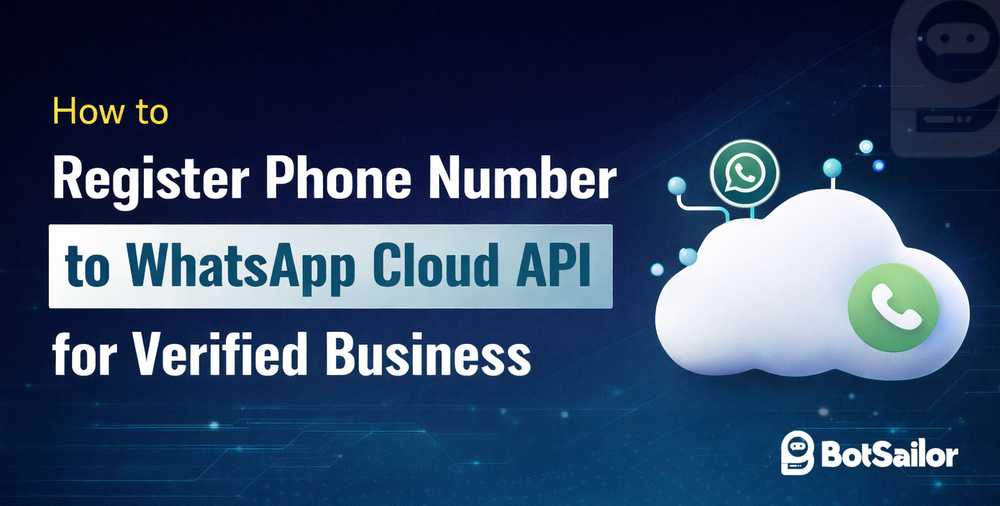
For Some WhatsApp business accounts with a Verified business, Facebook is asking for two-step verification, and a PIN set up to fully verify and approve it.
They will validate your business display name if the name of your business (Verified Business) and the name of your WhatsApp business account matches. If they do not approve the business account after validating the name, we must first enable two-step verification and set a PIN on the BotSailor after linking the account on BotSailor.
We will show you how to do that step by step.
After adding the phone number on Step 5, please go to “see the Overview page”.
(Please read our previous Blog on “How to setup the WhatsApp Cloud API with BotSailor” to know how to create the app and add a phone number in Step 5)

In the first place, you will see the WhatsApp business account and the WhatsApp account number. Click on the Account number to check the status.

If your business is verified, and the WhatsApp Business profile display nameismatching your business branding then they should verify the display name. It may take a few minutes to get verified.

If we refresh it, we should see the changes. If they don’t verify then we will have to try another name. In my case, they have verified the WhatsApp Business profile display name. But the other permissions are still pending. That means this account is not yet ready to use on BotSailor. In this situation, we will have to turn on the 2-step verification and set up a PIN.
As soon as we do that, this account will be activated.

Step-1: (Turn on the Two-Step Verification on your Facebook Account)
We can turn on the two-step verifications from the Facebook Account settings. To turn on the two-step verification, first go to this URL: Facebook settings & privacy (On a separate browser tab). And click on the “Security and login”

After that, from the “two-factor authentication” click on the edit button.

From the next step, select a security method. There are 3 options to choose from. We can use an authentication app, a Text message (SMS), or a Security key. We are using the Text message. Click on the “Use text message” button.

As soon as we click on the button, it will ask us to select or add a phone number for the two-factor authentication. Select the phone number and then click on continue.

Enter the verification code you receive through a Text message from Facebook and click on the continue button.

As soon as we do that Facebook will show a confirmation message. Click on Done Button.

Facebook will ask you to enter your password to continue. Enter the password and click the continue button.

Finally, it will show the success message. Saying, “Two-factor authentication is on”.

Step-2: (Connect the WhatsApp business account to BotSailor with a PIN)
In our WhatsApp Cloud API set up blog, we have shown how to create an access token and get the Business account ID to connect the WhatsApp business account to BotSailor.

After connecting the WhatsApp Business Account with the Access token and Business ID, we will have to register with a New PIN.
After a successful connection, just click on the register button.

After clicking the Register button, this will ask you to enter a PIN. Just Create a new PIN here and click on the “Register” button.

It will give you a Success message.

That’s it. Facebook should instantly change the status of your WhatsApp business account as well the quality Rating and messaging limit will be available.

After a few hours, if we click on the sync button from the BotSailor’s Connect WhatsApp, the updated status should be also visible here.

If Facebook is not approving your WhatsApp business account fully then just follow these two steps, the account should be approved instantly. And you should be able to receive WhatsApp messages on the live chat of BotSailor, also bots should work just perfectly.
If you still find a problem, please let us know by commenting below, we will be happy to solve your problem.
Related Articles:
How to Integrate Shopify for WhatsApp Automation
WhatsApp Business Profile Settings for WhatsApp Cloud API
You can also watch the Video Tutorial: